Introduction
This document describes the prerequisites and technical process that will enable merchants to accept Apple Pay payments via the RocketGate Gateway API.
Apple Pay transactions can be processed by the following processors:
- Checkout.com
- EPX
- Finby (formerly known as TrustPay)
- PayXpert
- Shift4
- TSYS
The overall process for integrating Apple Pay with the Gateway API is as follows (each step is described in more detail in this document):
Create an Apple Developer account.
Create your Apple Pay Merchant ID, generate the Apple Pay Payment Processing Certificate, the Apple Pay Merchant Identity Certificate and validate your website domains.
Provide the generated Apple Pay Payment Processing Certificate to RocketGate.
Integrate with Apple Pay to display the Apple Pay button on your website.
Fetch the Apple Pay token and provide it to RocketGate in a Gateway Request.
Receive and handle the Gateway API response.
The high-level Apple Pay transaction flow
The customer chooses to pay with Apple Pay and clicks the Apple Pay button.
The Apple Pay payment sheet is displayed to the customer.
The customer reviews the transaction details and authenticates the transaction.
The payment data is encrypted by Apple and then passed to your website.
Your website passes the Apple Pay payment object to your server-side.
Your server-side accepts the payment object and passes the Apple Pay token to RocketGate with the Gateway Request API’s APPLE_PAY_TOKEN parameter.
RocketGate receives and decrypts the Apple Pay token, then sends an authorization request to the processor.
The processor sends an authorization request to the acquirer. The acquirer sends a request to the card network. The card network sends the card number to the issuer for authorization.
Confirmations are sent back to each entity.
The customer sees a checkmark on the Apple Pay payment sheet indicating a successful payment.
Prerequisites
Before beginning your Apple Pay integration please review the following prerequisites:
An approved Apple Developer account
The ability to log into your Apple Developer account to create and configure your Apple Pay Merchant ID
Familiarity with Apple Pay and the ability to:
Integrate with Apple to display the Apple Pay button to your website
Fetch the Apple Pay token from your integration with Apple
Familiarity with the RocketGate Gateway API and the ability to:
Submit a Gateway Request with the Apple Pay token
Receive and handle a response from the RocketGate gateway
Familiarity with RocketGate’s Mission Control administration and reporting portal, and with RocketGate’s reporting APIs.
Onboarding with Apple and certificate creation
The onboarding and certificate creation processes are described below.
Register for an Apple Developer Account
There is a small fee charged by Apple and an approval process that is managed by Apple.
When your Apple Developer Account is approved you may proceed to the next step. The following steps will not be accessible until your Apple Developer account is approved. Further, you must be an administrator of the Apple Developer account to perform the following steps.
Create an Apple Pay Merchant Identifier (also known as Merchant ID or Merchant Identity)
Merchants may set up one or more Apple Pay Merchant Identifiers. RocketGate accepts the configuration of multiple Apple Pay Merchant IDs per RocketGate Merchant ID (limited to one Merchant Identifier per site)
You may configure one Apple Pay Merchant Identifier for all your RocketGate sites, by assigning it to Site 0. Alternatively, you may configure one Apple Pay Merchant Identifier per site.
Multiple Apple Pay Merchant Identifiers per site is currently not supported.
Navigate to the Identifiers section of your Apple Developer account.
Click the button to create a new Merchant ID.
Choose a name and an identifier.
Apple will append “merchant” to the identifier you create. The identifier will be formatted as merchant.com.abc.xyz, where com.abc.xyz is chosen by you.
Click Continue to register the identifier.
Navigate to the Identifiers section and click your newly created Merchant ID for further configuration.
Create an Apple Pay Payment Processing Certificate
Before performing the following steps contact RocketGate and request RocketGate’s Certificate Signing Request (CSR). The Certificate Signing Request is a unique, merchant specific file created by RocketGate that will be provided to you upon request.
Click Create Certificate and upload the Certificate Signing Request file that you requested and received from RocketGate.
Upon completion, you will be able to download the Apple Pay Payment Processing Certificate (.cer file).
Provide the downloaded .cer file to RocketGate. The Apple Pay Payment Processing Certificate will be used by RocketGate to decrypt the Apple Pay token.
When this process is completed RocketGate can decrypt the Apple Pay tokens that will be generated for your Apple Pay Merchant ID.
Configure your Apple Pay Merchant Identity Certificate
Configuring the Apple Pay Merchant Identity Certificate is a mandatory step required for hosting the Apple Pay button on your website and for generating Apple Pay tokens.
There is no interaction with RocketGate needed for this step. However if you require assistance, please contact RocketGate.
Configure and validate your website domains in the section titled Merchant Domain
As with step 4 above configuring the Merchant Domain is required for hosting the Apple Pay button and for generating Apple Pay tokens. No interaction with RocketGate is required for this step. However if you need assistance, please contact RocketGate.
Displaying the Apple Pay button on your website
Apple provides documentation and sample code to help you integrate the Apple Pay button into your website.
Good places to start are:
The Apple Pay demo site, which includes a step-by-step guide and sample code:
A video walkthrough of the integration process:
Guidelines and rules for displaying the Apple Pay button:
Apple Pay DPANs vs MPANs:
DPAN - Device PAN
DPANs are coupled to the Apple device used by the customer to initiate the Apple Pay payment. Because DPANs are bound to the cardholder’s mobile device, a new DPAN must be issued when the cardholder changes their device.
Starting July 30 2025, Visa instructs against the usage of DPANs, if they are intended to be reused in MIT transactions.
MPAN - Merchant PAN
MPANs are tied to the customer, the underlying card PAN, and to the merchant’s business entity. MPANs are not tied to the customer’s Apple device.
MPANs can be used for card-on-file transactions including recurring payments and subsequent transactions.
If you intend to use the Apple Pay token for subsequent transactions (e.g. recurring billing), RocketGate recommends generating MPANs if the Apple Pay token is intended to be reused in MIT transaction processing workflows. MPANs can be created by sending the recurringPaymentRequest JSON object in your Apple Pay payment request.
For tracking the various events in the Apple Pay token lifecycle, merchants can provide an endpoint in the tokenNotificationURL field of recurringPaymentRequest, to which Apple Pay will post token lifecycle event notifications. See the Token Lifecycle Notifications section below.
RocketGate provides the APPLE_PAY_MERCHANT_TOKEN_ID in the Gateway Response payload. This token identifier can be used for correlating the event data with the actual token stored on RocketGate’s side.
Token Lifecycle Notifications
To track lifecycle events for an Apple Pay payment token (such as expiration, suspension, or updates), merchants may provide a notification endpoint using the tokenNotificationURL field within the recurringPaymentRequest object. Apple will send token lifecycle event notifications to this endpoint, allowing your systems to remain synchronized with the current status of the stored payment token.
Merchants using Apple Pay for recurring or stored credential transactions should subscribe to these notifications. If a token expires or is revoked, the merchant will need to contact the customer to generate a new Apple Pay token before additional billing attempts can be processed.
For implementation details, see Apple’s documentation: Receiving and handling merchant token notifications.
Passing the Apple Pay token into the RocketGate Gateway API Request
If you have previously implemented the RocketGate Gateway API, your integration will continue to work as expected. Other than supplying GatewayRequest.APPLE_PAY_TOKEN, you will not have to make any changes.
For greater clarity, RocketGate can accept and process the following payment methods:
A full card number, also known as a PAN: GatewayRequest.CARDNO
A RocketGate generated token, also known as a hash: GatewayRequest.CARD_HASH
A reference to a previous transaction: GatewayRequest.PAYINFO_TRANSACT_ID
A Google Pay token: GatewayRequest.GOOGLE_PAY_TOKEN
NEW, the subject of this document: GatewayRequest.APPLE_PAY_TOKEN
It is a best practice to supply only one of CARDNO, CARD_HASH, PAYINFO_TRANSACT_ID, GOOGLE_PAY_TOKEN, or APPLE_PAY_TOKEN per request. If you supply more than one payment method in a single request RocketGate will use the following order of presence:
First, RocketGate will attempt to charge the CARDNO, if provided
Then, RocketGate will attempt to charge the CARD_HASH, if provided
Then, RocketGate will attempt to charge the PAYINFO_TRANSACT_ID, if provided
Then, RocketGate will attempt to charge the GOOGLE_PAY_TOKEN, if provided.
Finally RocketGate will attempt to charge the APPLE_PAY_TOKEN.
How to provide the APPLE_PAY_TOKEN Gateway Request parameter
After the customer authenticates and approves the payment in the Apple Pay payment sheet, your integration with Apple will provide you the Apple Pay payload, which contains the Apple Pay token and, optionally, additional information about the customer.
When submitting the APPLE_PAY_TOKEN in the Gateway Request, RocketGate can only accept the token itself (JSON structure). Providing data other than the token, or an incomplete token, will result in a transaction decline.
In the event that an invalid or an incomplete Apple Pay token is provided, RocketGate will decline the transaction with REASON_INVALID_APPLE_PAY_TOKEN (470).
The Apple Pay token can be extracted from the JSON payload that your integration with Apple will provide. The Apple Pay token can be found in the event.payment.token attribute.
Please ensure that your integration passes the complete token from the event.payment.token attribute.
Other information about the customer can be found in the event.payment attribute, for example event.payment.billingContact, which provides the customer’s billing address, name and email information, if it was requested in your Apple Pay payment request. The cardholder and billing details can be submitted with the dedicated Gateway Request parameters, e.g. BILLING_ADDRESS, BILLING_COUNTRY, BILLING_ZIPCODE, CUSTOMER_FIRSTNAME, CUSTOMER_LASTNAME, EMAIL, etc.
A (truncated) sample Apple Pay token JSON structure corresponding to the event.payment.token attribute is shown below.
{
"paymentData": {
"data": "Y1tMUe1bca4SZvqEEdbix5hk/z7V3xzaE...",
"signature": "MIAGCSqGSIb3DQEHAqCAMIACAQ...",
"header": {
"publicKeyHash": "3rlzmE4/62YzbM6Y9U4LSS74LAodq6BIEH4GCTvdhB4=",
"ephemeralPublicKey": "MFkwEwYHKoZIzj0CAQYIKoZIz...",
"transactionId": "4790e0bf5225439acb2309d481c6a1e2057d8913..."
},
"version": "EC_v1"
},
"paymentMethod": {
"displayName": "Visa 0121",
"network": "Visa",
"type": "credit"
},
"transactionIdentifier": "4790e0bf5225439acb2309d481c6a1e2057d8913..."
}
The RocketGate Response API
After submitting a Gateway Request with the Apple Pay token you can expect to receive the Gateway Response, as usual
The Gateway Response will contain a CARD_HASH. This CARD_HASH contains the hash of the Apple Pay token and can be used for subsequent merchant-initiated transactions (MITs)
The following list describes some of the noteworthy Gateway Response parameters related to the Apple Pay token. This list also applies to the PerformLookup method of the Gateway Service API.
Useful documentation:
Submitting decrypted Apple Pay tokens (an alternative to submitting the encrypted token)
As an alternative to submitting an encrypted Apple Pay token, some merchants may wish to handle the decryption of the Apple Pay token themselves.
Decrypting an Apple Pay token requires additional security measures and subjects your business to the full scope of Payment Card Industry Data Security Standard (PCI DSS) compliance. For example:
The decryption must occur within a secure, isolated environment.
Your business must have an Apple Developer account and a valid payment processing certificate issued by Apple to perform the decryption.
Cryptographic algorithms such as AES-256-GCM for ECC-based transactions are required to restore the symmetric key and decrypt the payment data.
Decryption involves multiple checks to ensure the transaction's authenticity and integrity, such as verifying the certificate chain, validating the digital signature, and preventing replay attacks by checking timestamps.
Access controls must be in place to prevent unauthorized access to the systems, processes, and cryptographic keys used in decrypting the Apple Pay token.
Further, regarding PCI compliance, handling the decrypted card data brings your systems into PCI’s Cardholder Data Environment (CDE). This means:
Your systems must adhere to all relevant PCI DSS requirements to protect sensitive cardholder data.
Decrypting tokens may require completing the most extensive PCI self-assessment questionnaire, SAQ-D.
To reduce the security and compliance burdens, it is recommended to submit encrypted Apple Pay tokens to RocketGate’s PCI-compliant gateway where RocketGate will handle the decryption on your behalf.
If you will be submitting decrypted Apple Pay tokens to RocketGate the following onboarding procedures are not required:
Requesting RocketGate’s Certificate Signing Request (CSR)
Providing the Apple Pay Payment Processing Certificate (.cer file) file to RocketGate
Useful documentation from Apple
Submitting elements of the decrypted Apple Pay token to RocketGate
Submitting a decrypted Apple Pay token requires you to provide several parameters to the RocketGate Gateway Request object. These parameters are described below.
The Gateway Request
$request->Set(GatewayRequest::PAY_TOKEN(), "4818xxxxxxxx6455");
$request->Set(GatewayRequest::PAY_TOKEN_TYPE(), "APPLE_PAY_TOKEN");
$request->Set(GatewayRequest::PAY_TOKEN_EXPIRY_MONTH(), "01");
$request->Set(GatewayRequest::PAY_TOKEN_EXPIRY_YEAR(), "2030");
$request->Set(GatewayRequest::PAY_CRYPTOGRAM(), "AzgxxxxxxxxxxxxxxxxxxxxxxAA=");
$request->Set(GatewayRequest::PAY_CRYPTOGRAM_ECI(), "7");
$request->Set(GatewayRequest::CARD_LAST_FOUR(), "1234");
$request->Set(GatewayRequest::BANK_CARD_DEBIT_CREDIT(), "1");
$request->Set(GatewayRequest::PAY_TOKEN_ID(), "9876..."); // optional but recommended
$request->Set(GatewayRequest::PAY_TOKEN_DEVICE_MANUFACTURER_ID(), "99"); // optional
* CIT = Customer Initiated Transaction
** MIT = Merchant Initiated Transaction
The Gateway Response
RocketGate\Sdk\GatewayResponse Object
(
[params] => Array
(
[authNo] => 1xxxx7
[merchantInvoiceID] => TestInvoiceID
[merchantAccount] => 1
[approvedAmount] => 10.00
[cardLastFour] => 1234
[schemeTransactionID] => 130xxxxxxxxx678
[version] => 1.0
[panToken] => apple_pay_token
[merchantCustomerID] => TestCustomerID
[reasonCode] => 0
[transactionTime] => 2025-11-11 08:06:07
[retrievalNo] => 100xxxxxxxxxbcd
[payType] => CREDIT
[cardHash] => EuDYnrZX.................
[cardDebitCredit] => 1
[cardType] => VISA
[bankResponseCode] => 0
[approvedCurrency] => USD
[guidNo] => 100019Axxxxxxxx
[cardExpiration] => 0130
[responseCode] => 0
)
)
Useful information
Subscription rebills - Apple Pay tokens are sticky
If a subscription was initiated with Apple Pay, subsequent rebills for that subscription will continue to use the Apple Pay token that was submitted for the initial payment
Apple Pay tokens and RocketGate’s Card Updater service
RocketGate’s Card Updater service applies to traditional credit cards. The Card Updater cannot update Apple Pay tokens
3DS, liability shift for Apple Pay payments, and USE_3D_SECURE
Because customers authenticate their purchases with Apple’s Touch ID or Face ID, Apple Pay payments usually benefit from a liability shift (i.e. liability is shifted away from the merchant to the issuer)
The encrypted Apple Pay token contains an ECI value which determines if liability is shifted to the issuer. If the issuer does not return an ECI value, the transaction is not eligible for a liability shift.
The ECI value is returned in the GatewayResponse ECI parameter. For more information see the ECI section of the GatewayResponse documentation
Because Apple Pay payments comply with SCA (strong customer authentication) the RocketGate USE_3D_SECURE parameter is not supported for Apple Pay transactions
If the USE_3D_SECURE parameter is set to TRUE and is submitted with an Apple Pay Gateway Request, RocketGate will respond with an 3DSECURE_INELIGIBLE error.
Build Payment Link (Simplified 3DS Flow) API
The Build Payment Link (Simplified 3DS Flow) API is not supported for Apple Pay.
The Apple Pay transaction can be routed to your TSYS, Checkout.com, PayXpert, Shift4, EPX, or Finby accounts
Apple Pay transactions submitted to RocketGate can be processed by TSYS, Checkout.com, PayXpert, Shift4, Finby, or EPX.
For PayXpert, please follow the instructions in the "Apple Pay and PayXpert" section below.
Many other processors will be supported in the near future.
Apple Pay and PayXpert
Before accepting Apple Pay on PayXpert, merchants must contact PayXpert and request that Apple Pay be configured for their PayXpert account.
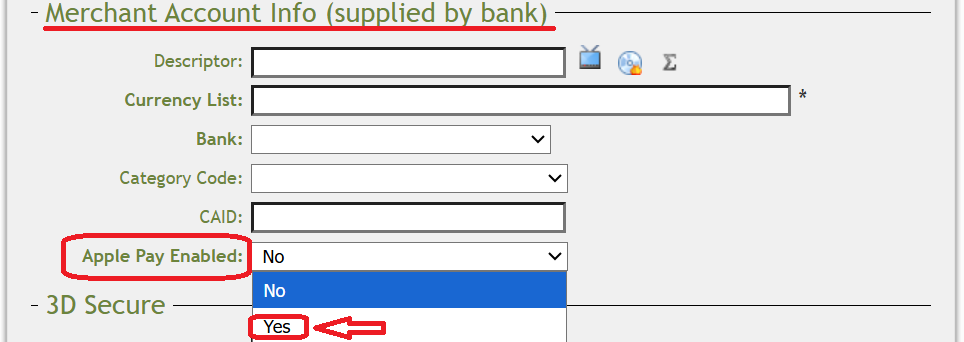
After PayXpert has confirmed that the account has been configured for Apple Pay, the RocketGate Merchant Account "Apple Pay Enabled" setting for PayXpert must be set to "Yes".
Apple Pay and BINs
The first 6 digits of the Apple Pay token should not be interpreted as the actual issuer BIN.
BIN routing, BIN exclusions, and other RocketGate features that are dependent on a BIN will be deactivated for Apple Pay transactions.
Cross-sales - GenerateXsell
Same-merchant and cross-merchant x-sells do not currently support Apple Pay tokens. Those transactions will be declined with the REASON_INVALID_REFERAL_DATA (437)reason code.
In the near future RocketGate will support same-merchant cross sales.
Network tokenization
Apple Pay payments are tokenized. RocketGate will not convert an Apple Pay token into a Network Token.
The PerformCardUpload method
The PerformCardUpload method can be used to update a customer's name, email, or billing address to an existing Apple Pay token (referenced by the CARD_HASH request parameter). However, the PerformCardUpload method cannot be currently used to upload a new Apple Pay token.
The PerformLookup method
For Apple Pay transactions the PerformLookup: method:
Returns apple_pay_token for the PAN_TOKEN field
The CARD_EXPIRATION field holds the Apple Pay token expiry date, not the card expiry date
The CARD_LAST_FOUR field holds the last four digits of the Apple Pay token, not the last four of the card.
Rebill Postbacks
For Apple Pay transactions that trigger the RebillPostbackURL postback, the panToken field will be set to apple_pay_token.
The Transaction History API and Apple Pay
The pan_token field will be set to apple_pay_token
The expiremonth field will hold the Apple Pay token’s expiration month
The expireyear field will hold the Apple Pay token’s expiration year
The token_f6 and token_l4 fields will hold the Apple Pay token’s first six and last four digits.
Testing your integration
Your Apple Pay integration can be tested in the RocketGate test environment.
For Gateway API integrations you must turn on "test mode" by calling the SetTestMode(true) method of the GatewayService object. This directs transactions to RocketGate's controlled test servers.
Tokens received from your integration with Apple and generated with your Apple Pay Merchant ID (for which the corresponding Apple Pay Payment Processing Certificate was provided to RocketGate) should be used for test transactions.
More information about testing can be found in the Test Values and Responses documentation,
The transaction test amounts listed in the Test Values and Responses documentation may be used for testing various responses (e.g. 0.01 = 104 “Declined”).
Version History
This document is version 1.1. Created 20-November-2025 and published on 12-December-2025.
Updated on 29-December-2025 with information about how to configure Apple Pay for PayXpert.
2-April-2026 - Added Checkout.com as a supported processor.
14-April-2026 - Added EPX as a supported processor.
27-April-2026 - Added Shift4 as a supported processor.
19-May-2026 - Added Finby as a supported processor.