This document describes how RocketGate merchants can accept Pix and Pix Automatico payments with the RocketGate Gateway API. The first part of the document describes the Pix flows and provides important background information. The second part of the document describes the technical integration.
To view the technical details and skip the introduction, go to: Creating a Pix QR code - request and response.
TABLE OF CONTENTS
- Introduction - Overview of Pix
- Prerequisites
- Payment flow
- The two-transaction model and the asynchronous nature of Pix payments
- Creating a Pix QR code - request and response
- Postbacks
- Testing your integration
- Important notes and limitations
Introduction - Overview of Pix
Pix is an instant payment system developed by the Central Bank of Brazil (Banco Central do Brasil) that enables individuals and businesses to make payments in Brazilian reais within seconds, 24 hours a day, seven days a week.
Customers make payments by scanning a QR code or copying a Pix code into their banking app to authorize the payment.
Pix payments are settled directly between participating financial institutions without using card networks.
RocketGate supports both one-time Pix payments and recurring subscription payments through Pix Automático, which allows customers to authorize recurring charges to their bank accounts without manually approving each payment.
For more information about Pix, refer to the Central Bank of Brazil's Pix Official Overview and Pix Frequently Asked Questions.
Prerequisites
Before beginning your Pix integration, review the following prerequisites.
An active LetPay account enabled to process Pix transactions
Familiarity with the RocketGate Gateway API and the ability to:
Submit a Gateway Request
Receive and handle a response from the RocketGate gateway
Receive, handle, and acknowledge postbacks from RocketGate
Familiarity with the RocketGate postback system, acknowledging postbacks, and configuration of one or more URLs to receive the following postbacks:
PixSuccessPostbackURL - mandatory, only for “Simple Pix”, one-time sales
PixDeclinePostbackURL - mandatory, only for “Simple Pix”, one-time sales
PixRebillSuccessPostbackURL - Required for recurring billing, including trial and initial transactions
PixRebillDeclinePostbackURL - Required for recurring billing, including trial and initial transactions
Familiarity with RocketGate’s Mission Control administration and reporting portal, and with RocketGate’s reporting APIs
For testing, a PIX MID must be set up in the RocketGate developer environment. The RocketGate Merchant Support team can assist with this.
Payment flow
One-time sales with Pix
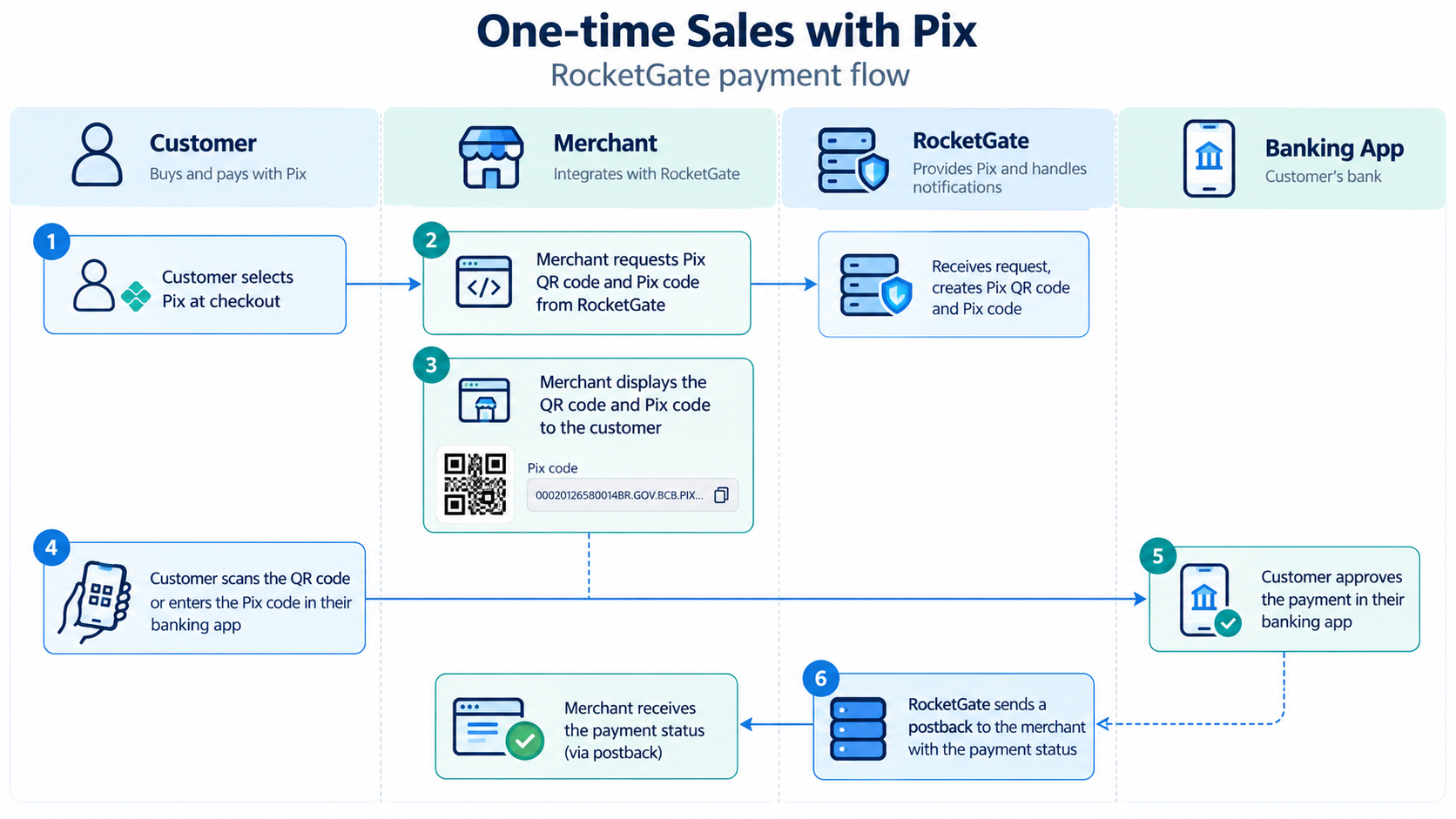
Customer selects the Pix payment method at checkout
Merchant requests a Pix QR code and Pix code from RocketGate
The QR code and Pix code are displayed to the customer
Customer scans the QR code using their banking app or enters the Pix code into their banking app
Customer approves the payment in their banking app
Merchant receives a postback from RocketGate that indicates the payment status
Recurring billing with Pix Automatico
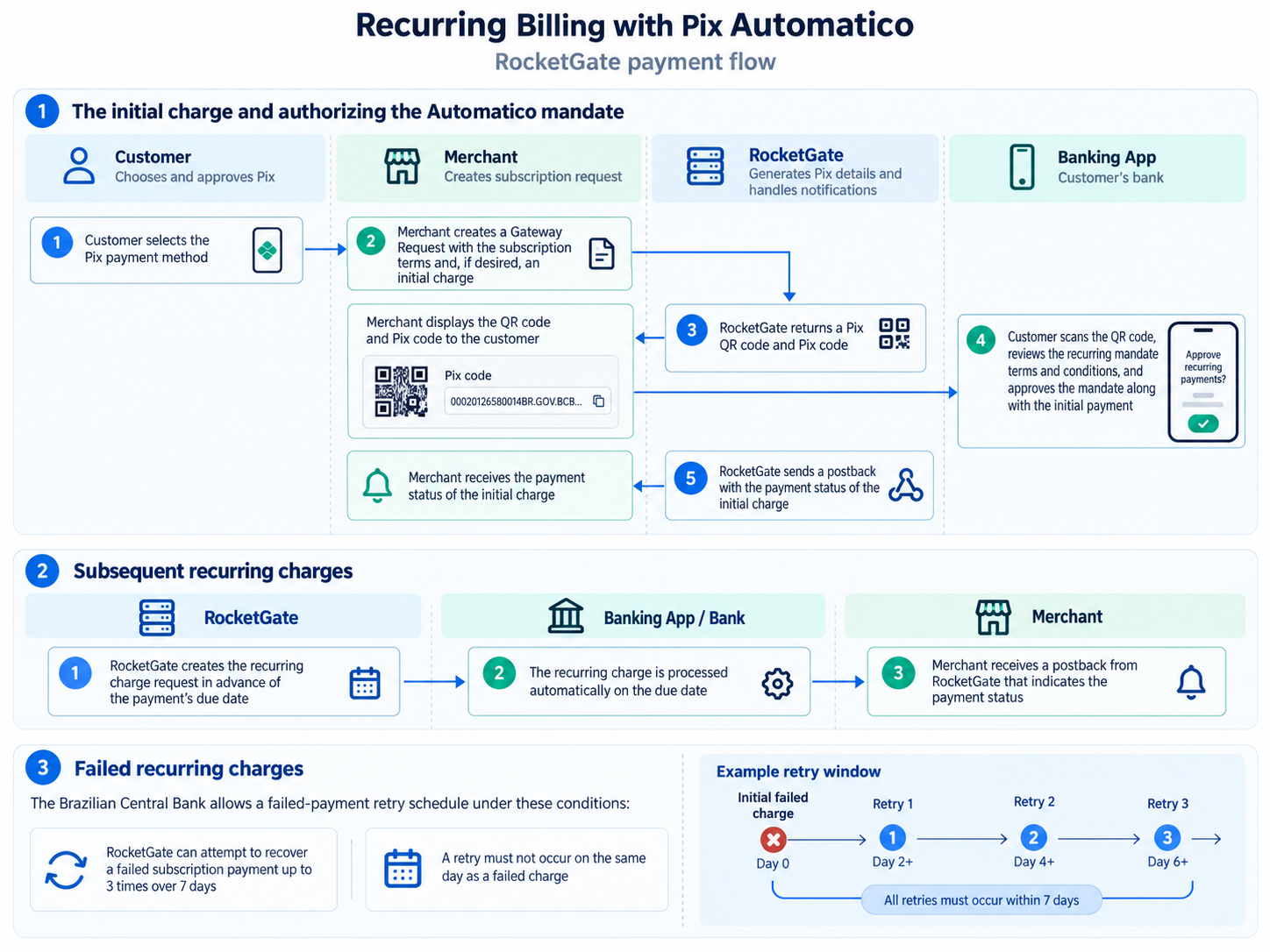
When the customer scans the QR code, their banking app presents the Pix Automatico mandate for approval. If an initial payment is included, the customer alos authorizes that payment.
After the mandate is approved, subsequent subscription payments can be processed automatically, without requiring the customer to scan another QR code or manually approve each recurring charge.
The initial charge and authorizing the Automatico mandate
Customer selects the Pix payment method
The merchant submits a Gateway Request containing the subscription terms and, optionally, an initial charge
RocketGate returns a Pix QR code and Pix code for the merchant to display to the customer
Customer scans the QR code, reviews the terms and conditions of the Pix recurring mandate, and approves the mandate along with the initial payment
Merchant receives a postback from RocketGate that indicates the payment status of the initial charge
Subsequent recurring charges
RocketGate creates the recurring charge request before the payment’s due date
The recurring charge is processed automatically on the due date
Merchant receives a success or decline postback from RocketGate that indicates the payment status
Failed recurring charges
The Brazilian Central Bank allows a failed-payment retry schedule under the following conditions:
RocketGate can attempt to recover a failed subscription payment up to 3 times over 7 days
A retry must not occur on the same day as a failed charge
$0 trials with Pix Automatico
Zero-dollar trials with Pix Automatico are supported
A $0 sale transaction (this is not an auth-only) is created by RocketGate so that a postback can be sent to the merchant that refers to this transaction
The two-transaction model and the asynchronous nature of Pix payments
Unlike a typical credit card payment, generating a Pix QR code does not complete the customer's payment.
RocketGate uses two separate transactions to process Pix payments:
The first transaction (PAY_INIT): The first transaction is dedicated to the creation of the Pix QR and Pix codes. This is not a financial transaction.
A successful response confirms that the payment instructions and codes were generated. It does not indicate that the customer has paid.
The merchant should not fulfill the order or activate paid services solely because PAY_INIT was successful.
The second transaction (SALE): When the customer completes the payment, RocketGate creates a separate SALE transaction and sends a postback to notify the merchant of the payment result.
Merchants should not fulfill an order or activate paid services based solely on a successful PAY_INIT response. Instead, they should use the payment status received through a RocketGate postback or an appropriate status lookup.
The first transaction - generating a Pix QR code
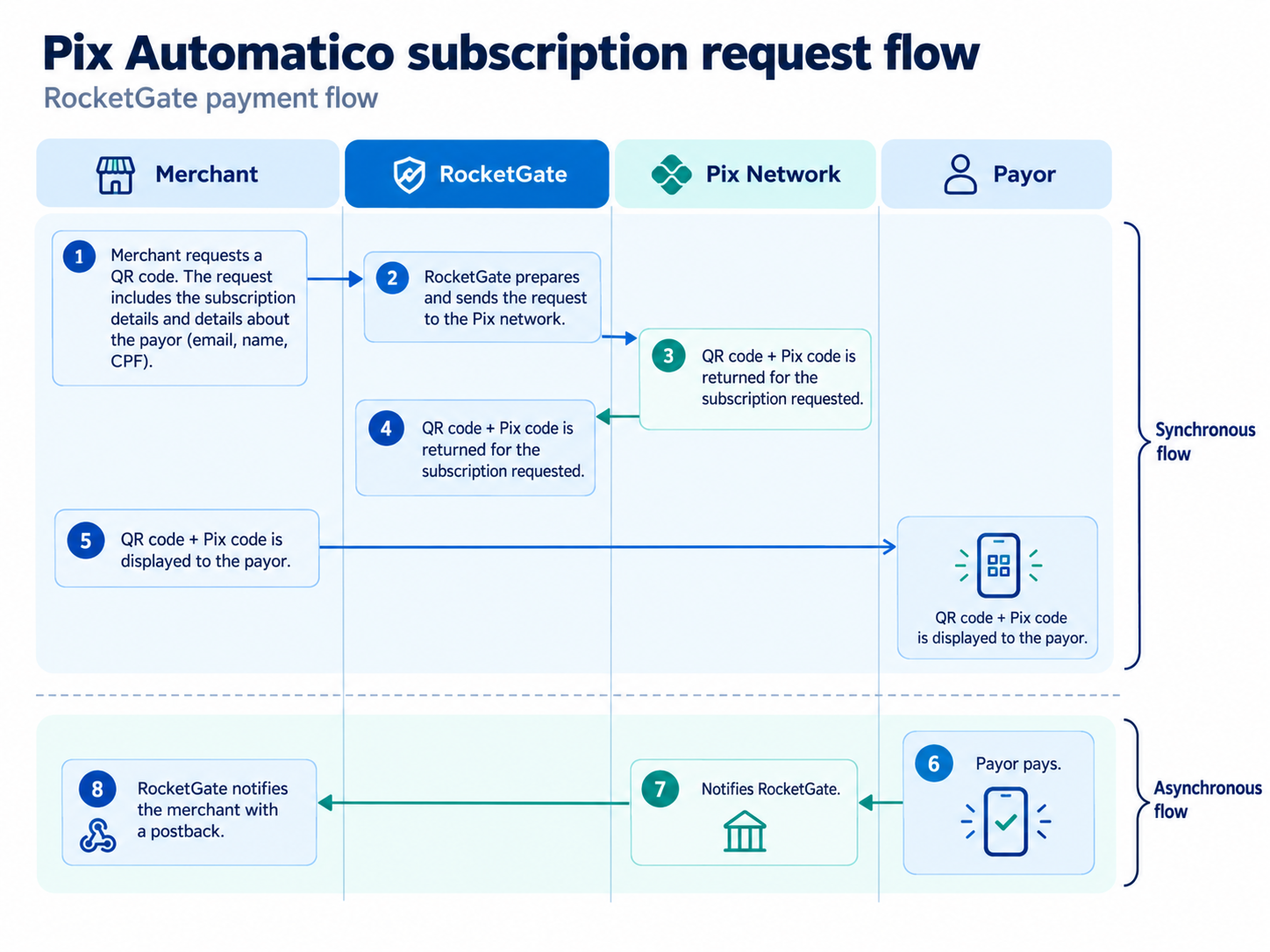
The Pix QR code expires after a specified validity period ranging from 1 minute to 10 days. For Pix Automatico, the expiration date must be set to the next day.
The subscription can have an initial trial amount that is different from the recurring charge
Pix subscriptions support weekly, monthly, quarterly, half yearly (semiannual), and yearly (annual) billing cycles
Rebills have a due date (the charge date) controlled by REBILL_START and must be set to a minimum of 3 days in the future
Subscription payments and subsequent transactions (rebills)
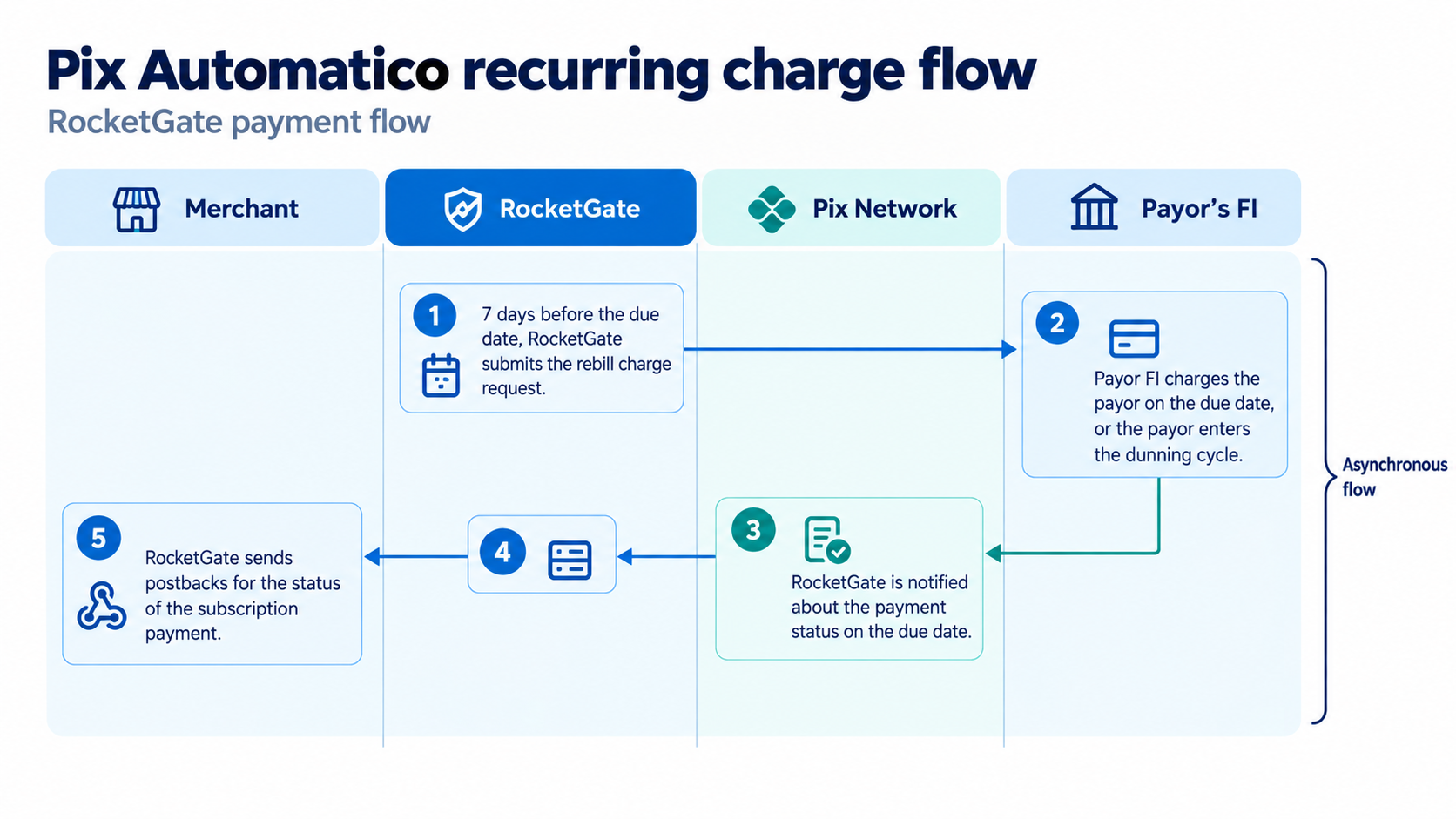
For Pix subscriptions, RocketGate’s subscription-billing engine will work similarly to credit card rebills. Many of the Gateway Request and Gateway Response parameters can be reused.
Postbacks will be sent for successful trials, initials, rebills, and declines, including retries
Pix has a rigid retry policy after a decline:
3 attempts during a 7-day dunning period
Retries are not allowed on the same day as the decline
There are no custom retry schedules for Pix subscriptions
The subscriptions is cancelled if all 3 retry attempts are declined. This is equivalent to the end of a credit card retry schedule.
Mission Control examples of the two-transaction model
Every Pix payment begins with a PAY_INIT transaction that generates the payment instructions (a Pix QR code and a Pix code). The corresponding financial transaction is recorded separately as a SALE.
The SALE transaction references the original PAY_INIT transaction through the Pix Initial field in Mission Control transaction view.
Merchants can also correlate the transactions using the payInitTransactID and transactID fields provided in the Pix postbacks.
The “first” transaction
The following screenshot displays a successful Pix PAY_INIT transaction. This is the transaction that generates a Pix QR code. This is not a financial transaction.
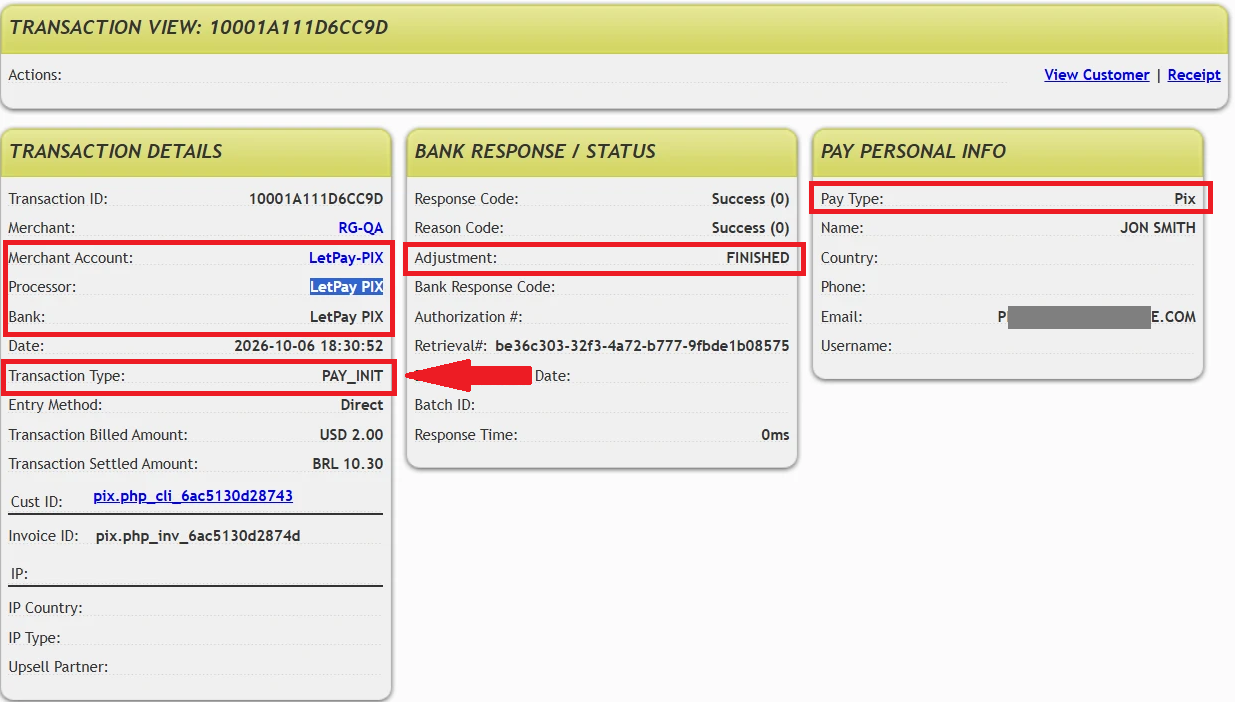
Notes:
The transaction type PAY_INIT indicates that a Pix QR code was requested.
In the example above the adjustment is set to FINISHED. This means that the customer has paid. The status of the PAY_INIT transaction will be PENDING until the customer pays or until the transaction is cancelled.
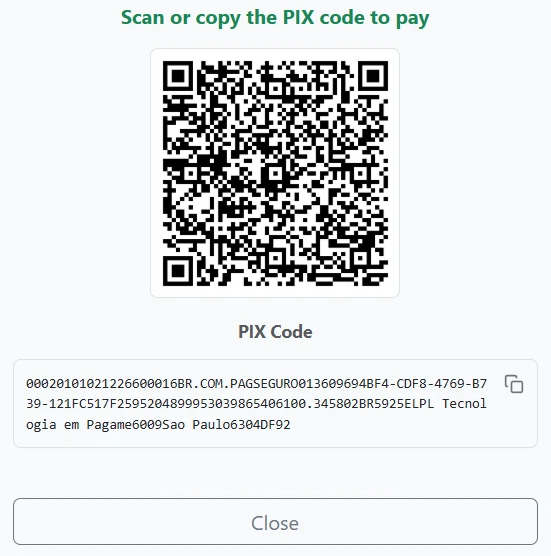
The QR and Pix codes
The Pix financial transaction
The screenshot below shows a Pix transaction that was paid successfully. This means that the customer scanned the QR code, authorized the charge, and completed the payment.
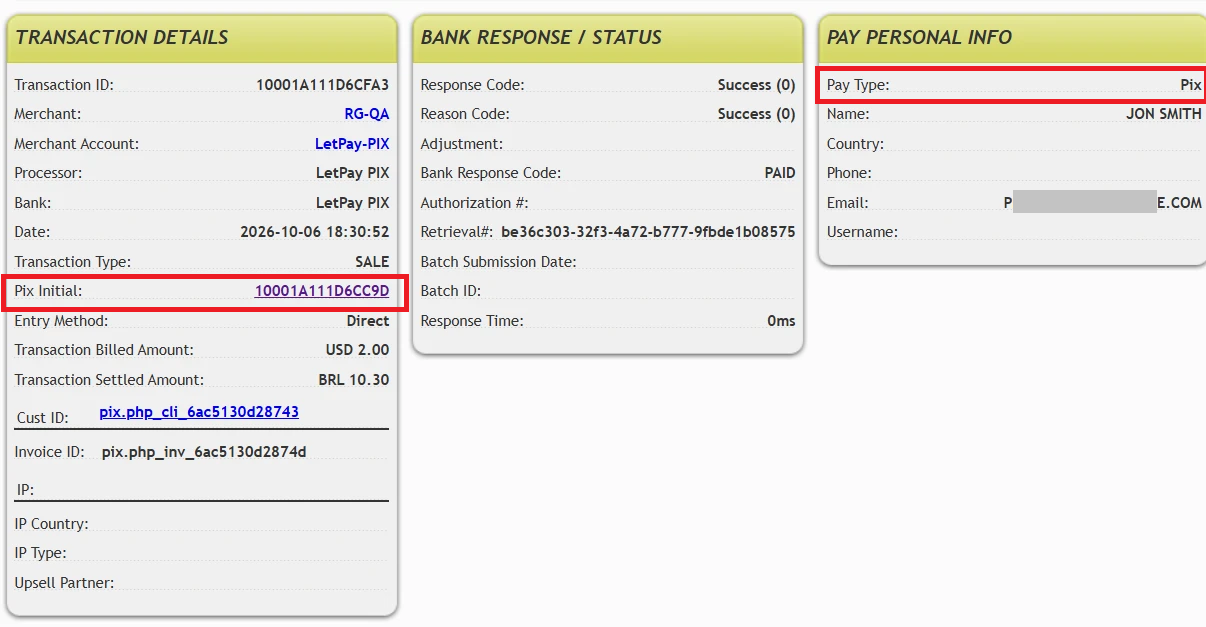
Notes:
The transaction type for a Pix payment is SALE.
A reference to the original PAY_INIT transaction (the QR code request) can be found in the Pix Initial field.
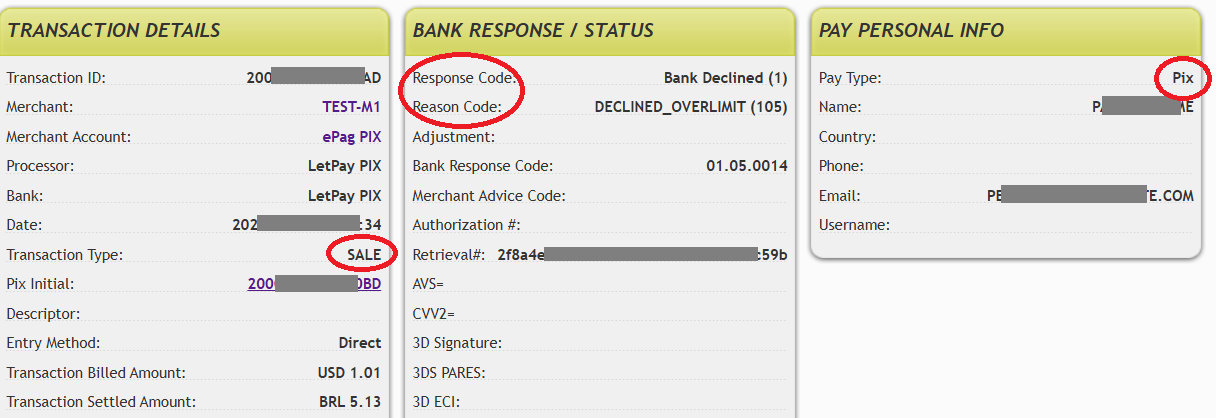
The following screenshot shows an example of a declined Pix financial transaction.
The Mission Control “Customer View” for a Pix initiated subscription will look similar to the example below.
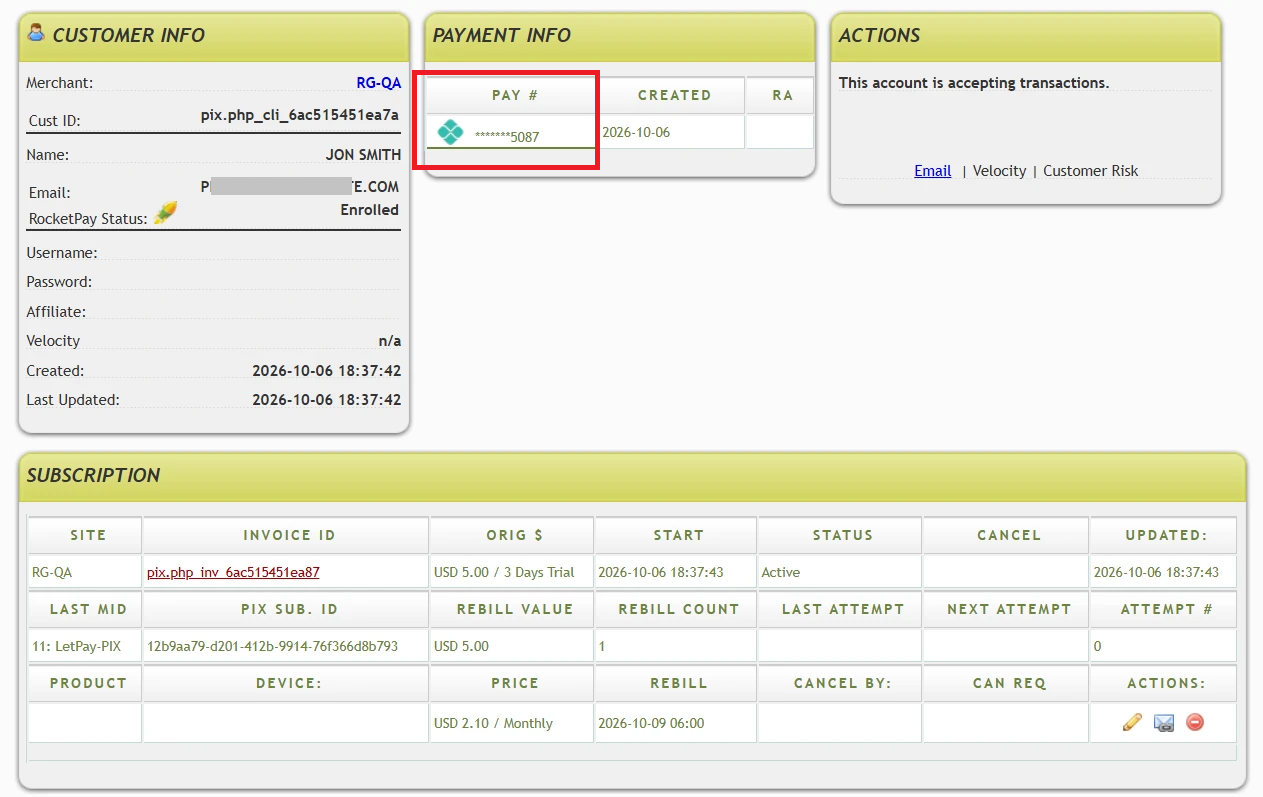
Creating a Pix QR code - request and response
Gateway Request parameters
The table below lists the Gateway Request API parameters that are used for Pix.
There are many other parameters available. One-time Pix payments and Pix Automatico subscriptions require an understanding of the:
Gateway Response parameters
Generating a one-time sale (“Simple Pix”) with the RocketGate PHP SDK
https://github.com/rocketgate/rocketgate-php-sdk
// Brazilian tax id, CPF
$request->Set(GatewayRequest::SS_NUMBER(), "XXXXXXXXXXX");

// Brazilian tax id type, e.g. CPF
$request->Set(GatewayRequest::SS_NUMBER_TYPE(), "CPF");

// PAY_TYPE = PIX
$request->Set(GatewayRequest::PAY_TYPE(), "PIX");

// BILLING_TYPE = S (SALE)
$request->Set(GatewayRequest::BILLING_TYPE(), "S");

// PIX validity code time in minutes
$request->Set(GatewayRequest::PAY_VALIDITY(), "180");

// Product description
$request->Set(GatewayRequest::PAY_DESCRIPTION(), "Premium access to gym");

// Use PerformPayInit method to perform PayInit transaction
$result = $service->PerformPayInit($request, $response);

if($result){
     // Get and print PAY_CODE and PAY_QR_CODE response parameters
     $pix_code    = $response->Get(GatewayResponse::PAY_CODE());
     $pix_qr_code = $response->Get(GatewayResponse::PAY_QR_CODE());

     // Display $pix_code and $pix_qr_code to the paying customer
}
Generating a Pix Automatico subscription with the RocketGate PHP SDK
https://github.com/rocketgate/rocketgate-php-sdk
// Brazilian tax id, CPF
$request->Set(GatewayRequest::SS_NUMBER(), "XXXXXXXXXXX");

// Brazilian tax id type, e.g. CPF
$request->Set(GatewayRequest::SS_NUMBER_TYPE(), "CPF");

// PAY_TYPE = PIX
$request->Set(GatewayRequest::PAY_TYPE(), "PIX");

// BILLING_TYPE = I (Initial)
$request->Set(GatewayRequest::BILLING_TYPE(), "I");

// PAY_VALIDITY for Automatico must be at least one day (1440 minutes)
$request->Set(GatewayRequest::PAY_VALIDITY(), "3600");

// Description of the subscription service
$request->Set(GatewayRequest::PAY_DESCRIPTION(), "Premium access to gym");

// Rebill frequency
$request->Set(GatewayRequest::REBILL_FREQUENCY(), "7");

// Rebill amount
$request->Set(GatewayRequest::REBILL_AMOUNT(), "2.21");

// If REBILL_START is used it must be a minimum of 3 days
$request->Set(GatewayRequest::REBILL_START(), "3");

// Use PerformPayInit method to perform PayInit transaction
$result = $service->PerformPayInit($request, $response);

if($result){
     // Get and print PAY_CODE and PAY_QR_CODE response parameters
     $pix_code    = $response->Get(GatewayResponse::PAY_CODE());
     $pix_qr_code = $response->Get(GatewayResponse::PAY_QR_CODE());

     // Display $pix_code and $pix_qr_code to the paying customer
}
Postbacks
| Postback configuration | When used |
| PixSuccessPostbackURL | Successful one-time Pix payment |
| PixDeclinePostbackURL | Declined one-time Pix payment |
| PixRebillSuccessPostbackURL | Successful Pix Automatico initial, trial, or recurring payment, as applicable |
| PixRebillDeclinePostbackURL | Declined Pix Automatico initial, trial, or recurring payment, as applicable |
| CancellationPostbackURL | Canceled Pix Automatico subscription |
PixSuccessPostbackURL
Following a successful one-time Pix payment (“Simple Pix”) the designated URL for PixSuccessPostbackURL will receive a postback similar to the following example.
<?xml version="1.0" encoding="UTF-8"?>
<Purchase>
<payInitTransactID>20...BAF</payInitTransactID>
<merchantAccount>74</merchantAccount>
<approvedAmount>5.13</approvedAmount>
<customerID>PixCustomerlT_202...55</customerID>
<customerLastName>SMITH</customerLastName>
<version>1.2</version>
<settledCurrency>BRL</settledCurrency>
<customerCity>NEW YORK</customerCity>
<transactID>200...87</transactID>
<customerState>NY</customerState>
<customerFirstName>JOE</customerFirstName>
<customerCountry>US</customerCountry>
<transactionType>PURCHASE</transactionType>
<reasonCode>0</reasonCode>
<referringMerchantID>1</referringMerchantID>
<requestedAmount>1.01</requestedAmount>
<requestedCurrency>USD</requestedCurrency>
<settledAmount>5.13</settledAmount>
<email>PET...E.COM</email>
<ipAddress>9.9.9.7</ipAddress>
<invoiceID>PixInvoiceQQ_20...55</invoiceID>
<paymentType>PIX</paymentType>
<merchantID>1234567</merchantID>
<customerZip>513145</customerZip>
<approvedCurrency>BRL</approvedCurrency>
<bankResponseCode>PAID</bankResponseCode>
<customerAddress>123 TEST ADDRESS</customerAddress>
<responseCode>0</responseCode>
</Purchase>
Notes:
The following fields confirm a successful Pix financial transaction:
<reasonCode>0</reasonCode>
<responseCode>0</responseCode>
The payment type (Pix) can be determined by inspecting:
<paymentType>PIX</paymentType>
The transaction ID of the original PAY_INIT request (the request for a QR code) can be found in the payInitTransactID field:
<payInitTransactID>200...AF</payInitTransactID>
The transaction ID of the financial transaction (the SALE) can be found in the transactID field:
<transactID>200019FC8122E87</transactID>
PixDeclinePostbackURL
Following a declined Pix one-time payment (“Simple Pix”) the designated URL for PixDeclinePostbackURL will receive a postback similar to the following example.
<?xml version="1.0" encoding="UTF-8"?>
<Purchase>
<payInitTransactID>20...0BD</payInitTransactID>
<merchantAccount>1234</merchantAccount>
<approvedAmount>5.13</approvedAmount>
<customerID>PixCustomer...430</customerID>
<customerLastName>SMITH</customerLastName>
<version>1.2</version>
<settledCurrency>BRL</settledCurrency>
<customerCity>NEW YORK</customerCity>
<transactID>200...AAD</transactID>
<customerState>NY</customerState>
<customerFirstName>JOE</customerFirstName>
<customerCountry>US</customerCountry>
<transactionType>PURCHASE</transactionType>
<reasonCode>105</reasonCode>
<requestedAmount>1.01</requestedAmount>
<requestedCurrency>USD</requestedCurrency>
<settledAmount>5.13</settledAmount>
<email>JOE@EMAIL.COM</email>
<ipAddress>8.8.8.7</ipAddress>
<invoiceID>PixInvoice...2430</invoiceID>
<paymentType>PIX</paymentType>
<merchantID>12345</merchantID>
<customerZip>513145</customerZip>
<approvedCurrency>BRL</approvedCurrency>
<bankResponseCode>01.05.0014</bankResponseCode>
<customerAddress>123 LONG STREET</customerAddress>
<responseCode>1</responseCode>
</Purchase>
Notes:
The following fields confirm that the transaction was declined:
<reasonCode>105</reasonCode>
<responseCode>1</responseCode>
PixRebillSuccessPostbackURL
Following a successful Pix Automatico rebill, the designated URL for PixRebillSuccessPostbackURL will receive a postback similar to the following example.
<?xml version="1.0" encoding="UTF-8"?>
<RecurringBilling>
<payInitTransactID>20001A0B00350B5</payInitTransactID>
<merchantAccount>74</merchantAccount>
<approvedAmount>5.21</approvedAmount>
<nextRebillTimestamp>2026-09-20 06:00:00</nextRebillTimestamp>
<customerID>PixCustomerQN_20260917183640</customerID>
<transactionDate>2026-09-17</transactionDate>
<version>1.1</version>
<settledCurrency>BRL</settledCurrency>
<transactID>20001A0B003850D</transactID>
<operation>INITIAL</operation>
<transactionType>PURCHASE</transactionType>
<reasonCode>0</reasonCode>
<requestedAmount>1.01</requestedAmount>
<requestedCurrency>USD</requestedCurrency>
<settledAmount>5.21</settledAmount>
<nextRebillDate>2026-09-20</nextRebillDate>
<rebillCycle>1</rebillCycle>
<invoiceID>PixInvoicenW_20260917183640</invoiceID>
<debuglog>high</debuglog>
<paymentType>PIX</paymentType>
<merchantID>1</merchantID>
<postbacktype>RebillPostback handler=52</postbacktype>
<merchantSiteID>0</merchantSiteID>
<transactionTimestamp>2026-09-17 18:36:55</transactionTimestamp>
<approvedCurrency>BRL</approvedCurrency>
<billingType>I</billingType>
<responseCode>0</responseCode>
</RecurringBilling>
PixRebillDeclinePostbackURL
A declined Pix Automatico rebill will post the following to the designated PixRebillDeclinePostbackURL.
<?xml version="1.0" encoding="UTF-8"?>
<RecurringBilling>
<payInitTransactID>20001A0B024718D</payInitTransactID>
<merchantAccount>74</merchantAccount>
<approvedAmount>0.52</approvedAmount>
<nextRebillTimestamp>2026-09-20 06:00:00</nextRebillTimestamp>
<customerID>PixCustomerTi_20260917191047</customerID>
<transactionDate>2026-09-17</transactionDate>
<version>1.1</version>
<settledCurrency>BRL</settledCurrency>
<transactID>20001A0B0247273</transactID>
<operation>REBILL</operation>
<transactionType>PURCHASE</transactionType>
<reasonCode>104</reasonCode>
<requestedAmount>0.1</requestedAmount>
<requestedCurrency>USD</requestedCurrency>
<settledAmount>0.52</settledAmount>
<nextRebillDate>2026-09-20</nextRebillDate>
<rebillCycle>1</rebillCycle>
<invoiceID>PixInvoiceSu_20260917191047</invoiceID>
<debuglog>high</debuglog>
<paymentType>PIX</paymentType>
<merchantID>1</merchantID>
<postbacktype>RebillPostback handler=53</postbacktype>
<merchantSiteID>0</merchantSiteID>
<transactionTimestamp>2026-09-17 19:12:53</transactionTimestamp>
<approvedCurrency>BRL</approvedCurrency>
<billingType>C</billingType>
<responseCode>1</responseCode>
</RecurringBilling>
CancellationPostbackURL
A cancelled Pix Automatico subscription will result in the following postback.
<?xml version="1.0" encoding="UTF-8"?>
<Cancellation>
<rebillCycle>2</rebillCycle>
<merchantID>1</merchantID>
<postbacktype>CancelBilling</postbacktype>
<customerID>PixCustomerxF_20260917190448</customerID>
<cancellationDate>2026-09-17</cancellationDate>
<debuglog>high</debuglog>
<reason>BILLING</reason>
<invoiceID>PixInvoicepT_20260917190448</invoiceID>
<reasonCode>104</reasonCode>
<cancellationRequestDateTime>2026-09-17 19:58:05</cancellationRequestDateTime>
<cancellationDateTime>2026-09-17 19:58:05</cancellationDateTime>
<version>1.1</version>
<merchantSiteID>0</merchantSiteID>
<attempts>0</attempts>
</Cancellation>
Configuring postback URLs
To configure URLs for the postbacks mentioned above, merchants should submit a request to support@RocketGate.com.
Testing your integration
In the development environment, no test transactions are submitted to the Pix network. RocketGate simulates the Pix workflow as closely as possible to the production environment. Sales and declines will be recorded instantly. In production, a sale or a decline can potentially happen minutes, hours, or days after the QR code is displayed to the customer.
A PIX MID must be added to your RocketGate Dev account. The RocketGate Merchant Support team can assist with this.
Test values
Simulating QR-code creation declines - test values
Simulating PIX payments declines - test values
Simulating successful PIX payments
Use any amount that is not specified in the two tables above. Any amount that does not simulate a decline will generate a PAY_INIT success and a successful sale.
Important notes and limitations
The Pix retry schedule
The Pix retry schedule is set by the Central Bank of Brazil. It cannot be customized like RocketGate’s other retry schedules.
The Pix retry schedule allows a maximum of 3 retries within a 7 day period, and a retry cannot be performed on the same day as the decline.
D+1 - RocketGate receives failure notification
D+2 - RocketGate sends the retry charge request
D+2 - Pix attempts the transaction
D+3 - RocketGate receives failure notification
D+4 - RocketGate sends the retry charge request
D+4 - Pix attempts the transaction
D+5 - RocketGate receives failure notification
D+6 - RocketGate sends the retry charge request
D+6 - Pix attempts the transaction
Rebill frequency - REBILL_FREQUENCY
Valid frequencies are:
7 for (7 days = WEEKLY)
MONTHLY
QUARTERLY
SEMI-ANNUALLY
ANNUALLY
PerformRebillUpdate
If the PerformRebillUpdate method is used to update a Pix subscriber’s name, CPF, or email, those changes will be performed in the RocketGate system only and will not be propagated to the Pix network.
PerformRebillUpdate cannot be used to process a one-time charge for Pix subscriptions. A “402 - Invalid transaction” error will be returned.
For Pix Automatico, PerformRebillUpdate cannot be used to change the frequency, the next rebill date, the rebill status, the rebill account, and rebill start date.
Load balancing
Pix transactions can be processed by one LetPay account only. Therefore, there is no load balancing among different Pix accounts.
Upsells and cross sales
Upsells and cross sales are not supported for Pix.
PerformPurchase, PerformAuthOnly, PerformTicket, and PerformVoid
PerformPurchase, PerformAuthOnly, PerformTicket, and PerformVoid are not supported for Pix. A “402 - Invalid transaction” error will be returned.
PerformCredit performs connected credits only
Credits in Pix must be connected credits. Credits must reference the original transaction to be credited. Partial credits are allowed.
Build Payment Link
The Build Payment Link functionality does not support Pix transactions.
Scrubbing and scrub rules
Not all scrubbing and scrub rules can be applied to Pix transactions. For example, card-related scrub rules cannot be applied to a Pix transaction.
$0 Trials with Pix Automatico
Zero-dollar trials with Pix Automatico are supported. A $0 sale transaction (this is not an auth-only) is created by RocketGate so that a postback can be sent to the merchant that refers to this transaction. This postback will be the merchant's confirmation that the subscription has been created.
The Gateway Request parameter REBILL_START
The start of the rebill cycle must be set to a minimum of 3 days after the successful payment. If a value is not provided for REBILL_START, RocketGate will set REBILL_START to AUTO, which means that the rebill cycle will start on today plus REBILL_FREQUENCY. However, if REBILL_START will be used with an integer (e.g. REBILL_START = 5), the value must be greater or equal to 3 days. This is a limitation set by the Brazilian Central Bank.